
Understand The Situation
“Help me plan a checkout sequence for a walk-in customer with three items.”
Explore The System / Scan & Go (POS)
Ring up purchases, take payments, and handle returns from a scanner-friendly checkout screen.
Scan & Go (POS) / 1
Open Scan & Go from Quick Launch or Sales.
Start an invoice for a walk-in customer or find and select a customer record. Scan inventory labels or search the catalog to add items, then review the invoice before committing it.
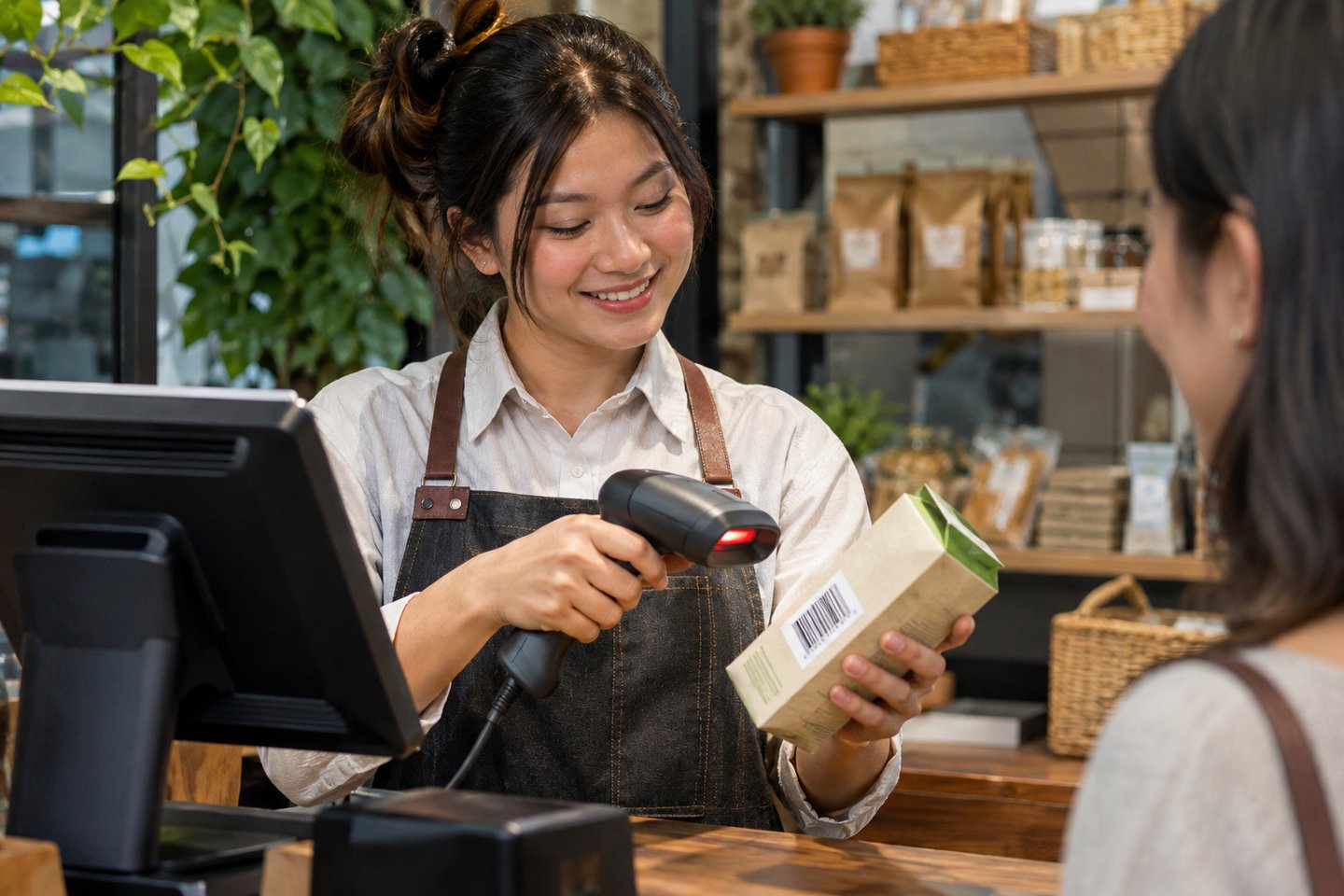
Before ringing up a new sale, confirm whether it should be attached to a specific customer. Then start the invoice and scan the labeled items one at a time, checking what appears on the screen for each scan.
Use the catalog search when a label is hard to read or a product needs to be found by name. If two products are similar, confirm the size or description before proceeding. Read back the item quantities and invoice amount when the order is ready for payment.
Scan & Go (POS) / 2
Open Take Payment to choose a payment type and enter or scan amounts.
The checkout also has a receipt-print action and a Previous Invoices panel for finding an earlier sale.
Use the payment type that matches what the customer is giving you. After entering or scanning the amount, check the record on the invoice before moving on to the next sale. This helps the person who reconciles the day recognize which payment belongs to the transaction.
Print a receipt if the customer needs a copy. If someone later has a question about the purchase, open Previous Invoices and match the original record before discussing the amount or handling a request to return an item. Finish the payment review before opening the next invoice so the amounts stay easy to trace.

Scan & Go (POS) / 3
Find the original invoice and select the item being returned.
Choose whether it goes back into stock or is marked damaged. Use the closeout report to review recorded refunds and daily cash activity.
When a customer brings an item back, match it to the original invoice and select the right line. Look at its condition before choosing whether it can go back into stock or needs to be marked damaged. After recording the return, review the relevant entries before you move on.
The return and the payment history can answer different questions about the same sale. If you are closing the register afterward, check the recorded refunds in the day’s report alongside the cash or payment records your team is using.
A Conversation That Leads To Action
Use these examples to explore the tool with ChatGPT, Claude, or another connected assistant that has access to the relevant records or reports.
Name the business and the item, customer, or record you want to discuss. Ask the assistant to identify any details it needs before you decide how to proceed.
“Help me plan a checkout sequence for a walk-in customer with three items.”
“Write a short counter checklist for finding a prior invoice and checking a return.”
“Summarize the reported refunds and cash activity after we close out the register.”
Use an authorized business connection for supported actions. Ask the assistant to show the records behind its summary and identify any steps that need your review.
Choose Your Next Step
Bring a routine sale, a return, or a closeout question to your demo. We can walk through the steps with you.